YouTube API and permissions settings can change over time, and in some instances silently break our integration. To resolve this, remove YouTube via your Team Settings Page, optionally- remove permissions via your Google Account, then re-add your YouTube channel via Team Settings.
How to remove and re-add your YouTube channel
You will need to have manager access to your YouTube channel to do this
- Go to your VideoMyJob web dashboard
- Select 'Team Settings' from the menu
- Scroll down the 'Team Details' tab to your connected apps
- Click 'Disconnect' YouTube
- OPTIONAL: Fully remove and delete VideoMyJob-YouTube app
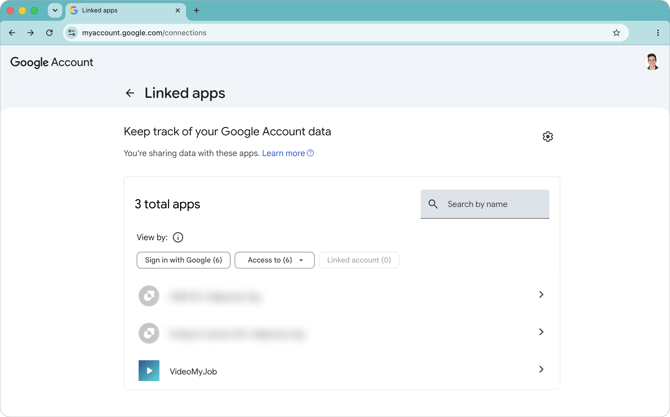
- Visit myaccount.google.com/connections then look for the app called 'VideoMyJob' on the 'Linked Apps' page. It's important you follow step 4 before completing this step.
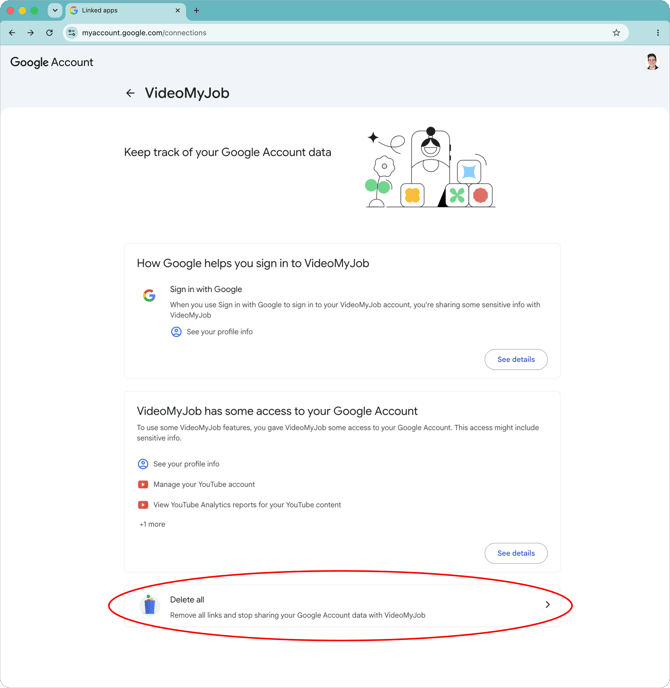
- After selecting the VideoMyJob app, choose 'Delete all' and 'Confirm' to completely delete the current connection
- Visit myaccount.google.com/connections then look for the app called 'VideoMyJob' on the 'Linked Apps' page. It's important you follow step 4 before completing this step.
- Now your YouTube channel and permissions has been removed from your account, you can re-add it by visiting: 'Team Settings' again and use 'Connect YouTube' .
IMPORTANT: Carefully verify you're adding the correct YouTube channel, as the Google account structure can cause incorrect channel selection.